Kit-Lighting
Base lighting, one click.
One-click, physically based base lighting for Unreal Engine 5: sky, sun or moon, sky light, fog, exposure and Lumen, all created and linked for you.
Supported engine versions: 5.6, 5.7 and 5.8, on Windows (Win64).
Installation
- Close Unreal Engine.
- Copy the
HDRILightKitfolder into your project'sPluginsfolder. Create thePluginsfolder next to your.uprojectif it does not exist. - Open the project. The plugin and Epic's HDRI Backdrop plugin (a dependency) are enabled automatically. You can check this in Edit > Plugins.
- A Kit-Lighting button appears in the main toolbar.
When the plugin is installed from Fab, it is added to the engine. Enable it in Edit > Plugins ("Kit-Lighting") and restart the editor.
Quick start
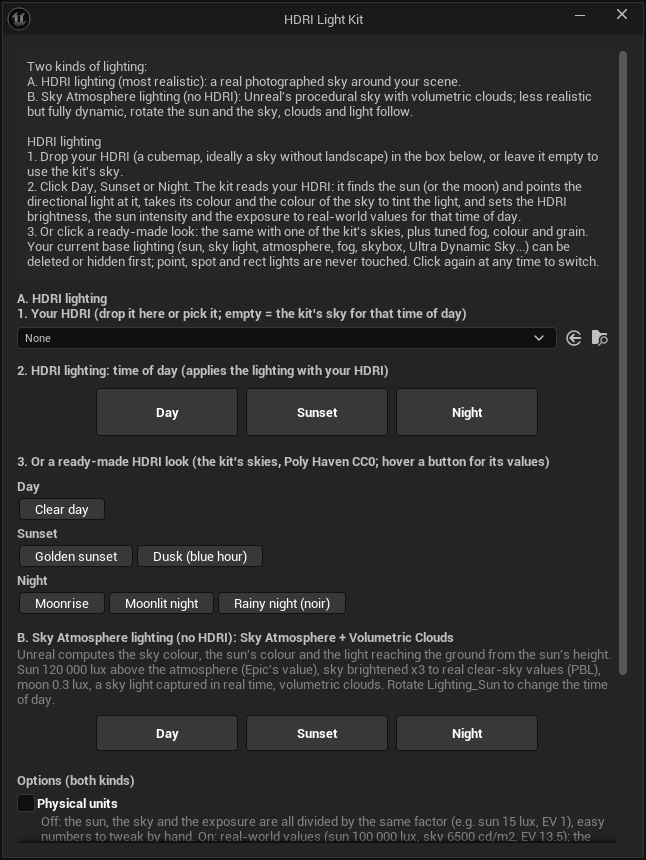
Click Kit-Lighting > Lighting setup.... Tip: try it first on a copy of your level.
A. HDRI lighting (most realistic)
- Drop an HDRI (a Texture Cube) in the box, or leave it empty to use the kit's sky.
- Click Day, Sunset or Night.
The kit then:
- finds the sun (or the moon) in the HDRI and aims the directional light at it;
- tints the light with the colour of the sun and the sky;
- calibrates the HDRI brightness (the backdrop intensity stays at 1);
- feeds the backdrop's sky light from the same cubemap (Specified Cubemap), so there is a single sky light;
- centres and sizes the dome on the landscape (or on the scene's geometry when there is no landscape), with its ground under the terrain.
B. Sky Atmosphere lighting (no HDRI)
Click Day, Sunset or Night in section B. The kit sets up:
- a Sky Atmosphere;
- volumetric clouds;
- a sky light captured in real time;
- a sun at 120 000 lux above the atmosphere (Epic's value).
Rotate Lighting_Sun to change the time of day: the sky, the clouds and the light follow.
C. Ready-made looks
Clear day, Golden sunset, Dusk (blue hour), Moonrise, Moonlit night, and Rainy night (noir). Hover a button to see its values.
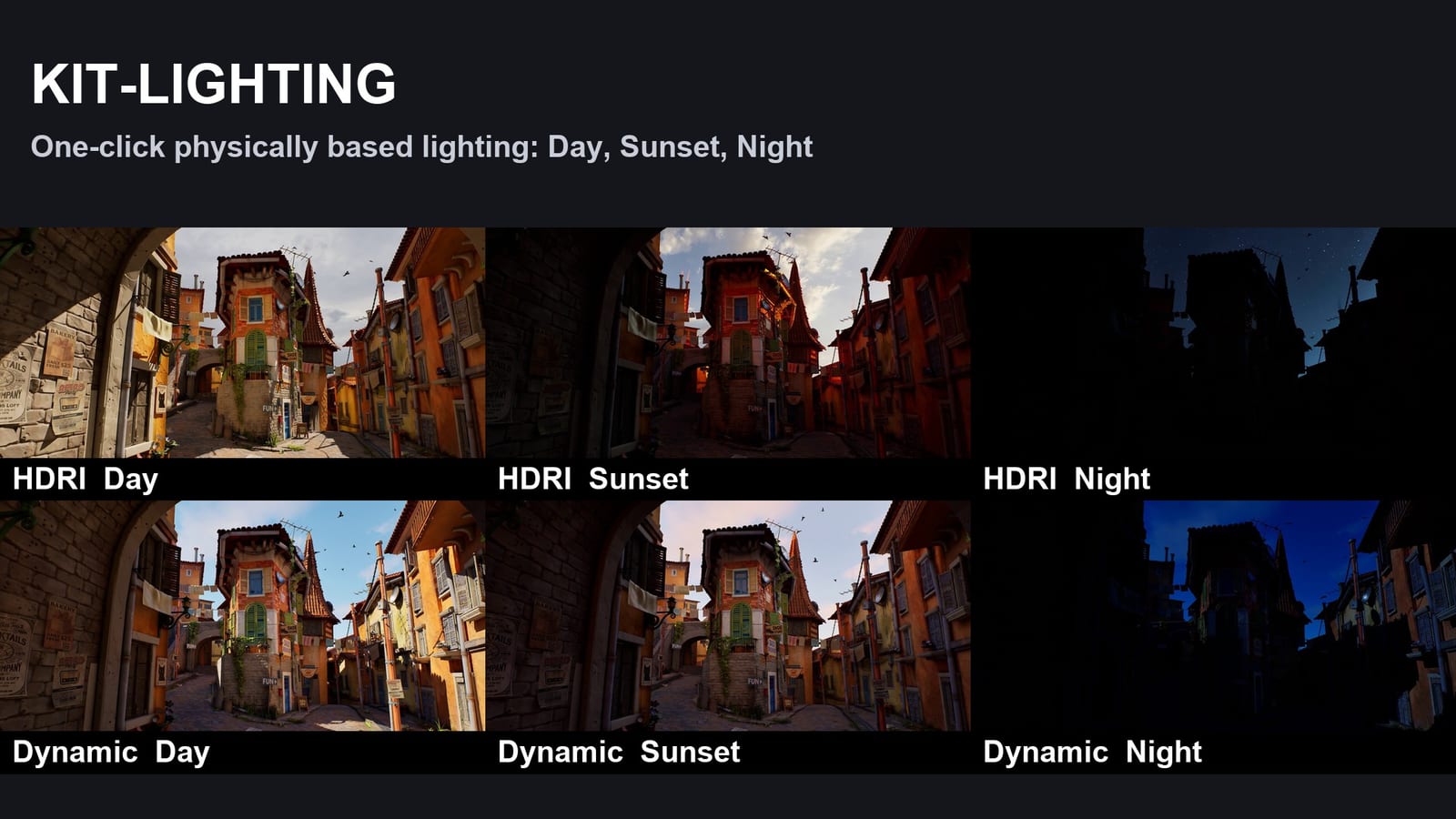
HDRI, Day HDRI, Sunset HDRI, Night Sky Atmosphere, Day Sky Atmosphere, Sunset Sky Atmosphere, Night
What gets created
Everything goes in the Kit_Lighting folder of the Outliner:
| Actor | Role |
|---|---|
Lighting_Sun / Lighting_Moon | Directional lights. Sun disc 0.53 degrees, moon disc 0.52 degrees (real angular sizes, crisp shadows); 15 degrees under an overcast sky. Light shaft occlusion is on; god rays are on at sunset. |
Lighting_HDRIBackdrop | HDRI mode: the HDRI Backdrop and its sky light. |
Lighting_SkyAtmosphere, Lighting_VolumetricClouds, Lighting_SkyLight | Sky Atmosphere mode. |
Lighting_HeightFog | Exponential height fog with volumetric fog. |
Lighting_Exposure | Unbound post process volume: fixed exposure (EV100), local exposure, Lumen quality, light bloom, vignette, grain and white balance. |
Lighting_CinematicFog | Only when the "Cinematic volumetric fog" option is on. |
Physically based values
The values come from Epic's physical lighting units, PBL reference tables and photography EV tables.
| Lighting | Direct light | Sky | Exposure (EV100) |
|---|---|---|---|
| Day | sun 100 000 lux | ~6 500 cd/m² | 13.5 |
| Sunset | sun 20 000 lux | ~300 cd/m² | 10.5 |
| Dusk | none | ~3 cd/m² | 4.5 |
| Night | moon 0.25 lux, bluish | ~0.01 cd/m² | -1 |
Nights are exposed darker than a light meter would suggest, as a photographer would do, so that night looks like night.
Options
Physical units.
- Off (default): the sun, the sky and the exposure are divided by the same factor, which gives easy numbers to tweak by hand.
- On: real values. The HDRI thumbnail then looks white, which is normal.
The image is the same either way. Turn it on before choosing a lighting if you add your own lights with real values (lumens).
Cinematic volumetric fog.
- Gives a finer volumetric fog, without flicker or trails around moving lights. It is heavier on the GPU.
- It is saved with the level and applied in Play and in Movie Render Queue renders.
- Untick it to go back to the engine values.
Your existing lighting
Before replacing anything, the kit lists the level's base lighting (directional lights, sky lights, atmosphere, clouds, height fog, skyboxes, Ultra Dynamic Sky...) and asks you to choose:
- Yes: delete it (Ctrl+Z restores it);
- No: only hide it;
- Cancel: do nothing.
Point, spot and rect lights are never touched. Kit-Lighting > Remove Kit-Lighting deletes what the kit created and shows the lighting it hid.
Tips
- After rotating the HDRI Backdrop, use Kit-Lighting > Align the sun on the HDRI.
- In a level without a landscape, check the backdrop's position and Size against your scene.
- For the rainy night, add coloured lights (signs, windows, tail lights) and a wet ground (low roughness).
Python / Blueprint
All actions are available in HDRILightKitLibrary:
SetupLighting;SetupSkyAtmosphereLighting;ApplyPreset;SetCinematicFog;AlignSunToHDRI;RemoveLightKit.
The console command HDRILightKit.OpenWindow opens the window.
Credits
The sky HDRIs come from Poly Haven (polyhaven.com) and are under the CC0 licence: farm_field, kloppenheim_06, qwantani_dusk_2, qwantani_moonrise and qwantani_night (pure sky versions).
Support
XR Forges, fabien.xrforges@gmail.com